Have you ever opened a book and found the answer quickly, almost like the book was helping you? Informational books and digital screens have special helpers built right in. These helpers are called text features. They help readers find key facts without reading the entire text from start to finish.
Text features are parts of a book, article, or screen that help us understand and find information. They are especially useful in nonfiction, which gives real facts. Some text features are in printed books, and some are on computers or tablets.
Text features are parts of a text that help the reader find, understand, and learn information. Examples include headings, tables of contents, glossaries, menus, and icons.
When readers have a question, they do not always need to read everything. They can look for the text feature that matches their purpose. If you want to know what a section is about, a heading helps. If you want to know what page to turn to, a table of contents helps. If you want to know what a word means, a glossary helps.
[Figure 1] A heading is a word or group of words that tells what a part of the text is about. A title tells the topic of the whole book or page. On a nonfiction page, headings work like little signs. A page may have one big title and smaller headings under it, so the reader can jump to the right part.
Suppose you are reading a book about rabbits. One heading says Food. Another says Homes. If you want to learn what rabbits eat, you should read under Food. The heading helps you know where the fact will be.
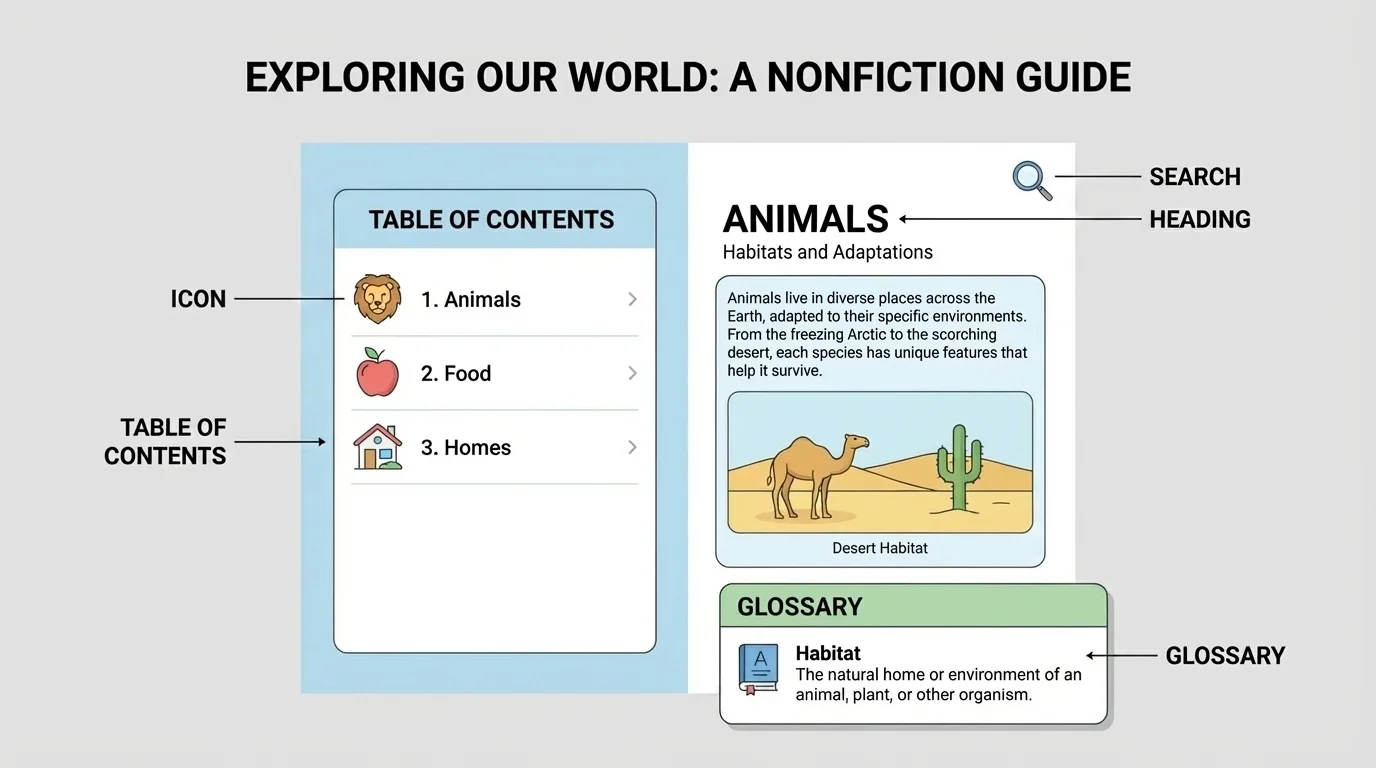
Headings help readers stay organized. Instead of guessing, readers can scan the page and look for the section that matches their question. If your question is "Where do frogs live?" a heading like Habitat or Homes is a good clue.
Using a heading to find a fact
Step 1: Think about your question.
Your question is: "What do bears eat?"
Step 2: Look for a heading that matches.
You see these headings: Looks, Food, and Cubs.
Step 3: Choose the best place to read.
The heading Food is the best place to find the answer.
Later, when you read another page with sections, you can remember the pattern in [Figure 1]: the bigger title tells the whole topic, and the smaller headings break the topic into parts.
A table of contents is usually near the front of a book. It lists the parts of the book and tells the page number for each part. This feature helps readers turn directly to the page they need.
[Figure 2] If a book has these entries — Birds on page 4, Fish on page 10, and Insects on page 16 — a reader who wants to learn about fish can go to page 10. The table of contents saves time.
Readers use this feature when they want to find a big topic in the book. It is helpful before reading because it gives a quick look at what is inside.
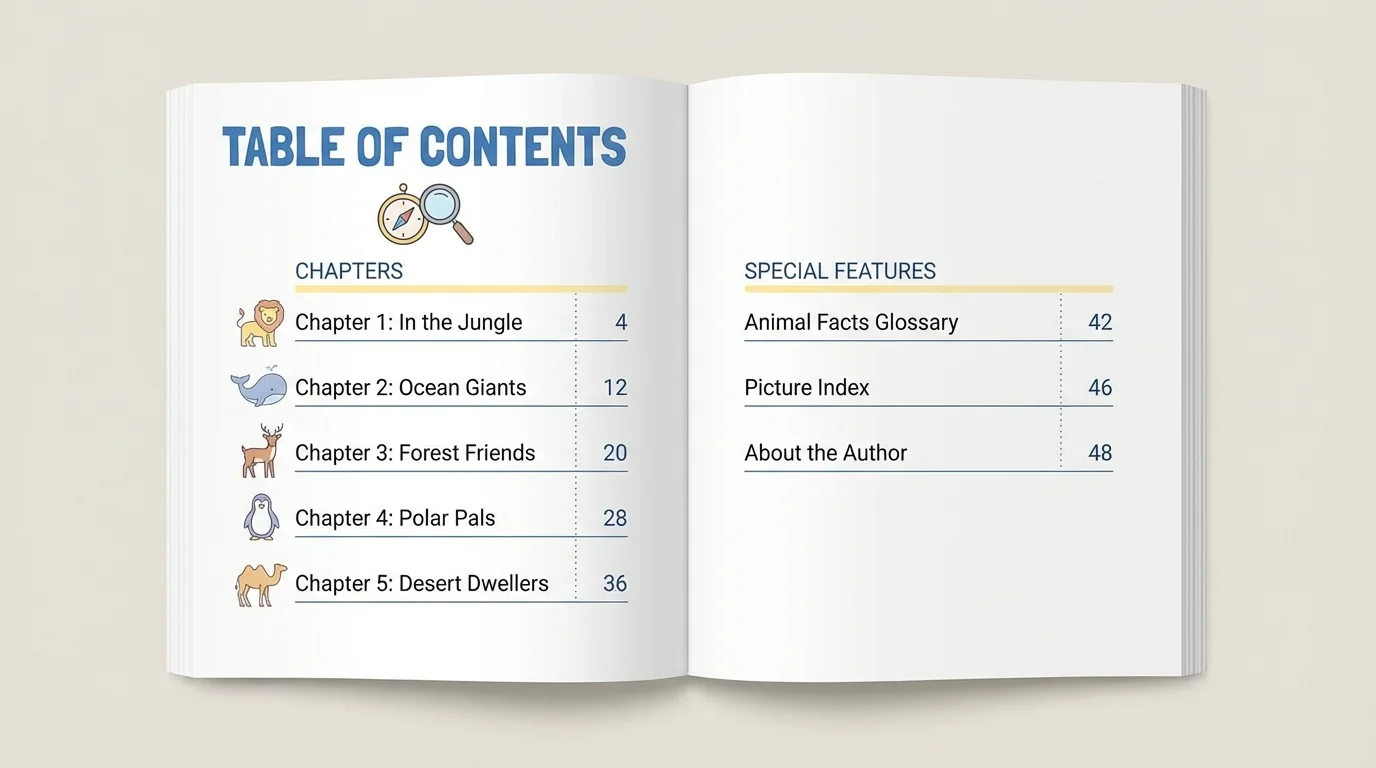
Sometimes the table of contents has chapter names. Sometimes it has shorter section names. In both cases, the page numbers are important. A reader matches the topic with the number and then turns to that page.
| Question | Best text feature |
|---|---|
| What page tells about whales? | Table of contents |
| What does the word habitat mean? | Glossary |
| Which part is about animal babies? | Heading |
Table 1. Matching a question to the text feature that helps most.
A glossary is usually at the back of a book. It gives meanings for special words in the text. Many nonfiction books teach new words, so a glossary helps readers understand them.
For example, a book about weather may use the word forecast. If the reader does not know that word, the glossary can help. The glossary might say that forecast means a report about what the weather may be like.
How a glossary helps
Readers use a glossary when they know where a word is in the book but do not know what the word means. A glossary does not usually tell the page for a whole topic. Instead, it explains important words so the reader can understand the text better.
Glossaries are often in alphabetical order. That means words are listed by their first letters, like a, b, c. This helps readers find a word faster. If you want the meaning of migrate, you look in the part of the glossary for words that begin with m.
Good readers know the difference between finding a topic and finding a word meaning. To find a topic, they may use the table of contents or a heading. To find a word meaning, they use the glossary.
[Figure 3] Not all informational text is in printed books. Some is on screens. On a tablet or computer, readers may use an electronic menu or an icon to move around. On a screen, these tools guide readers to facts, just as a table of contents guides readers in a book. Tabs and small picture buttons help the reader choose a topic.
An electronic menu may list choices like Animals, Weather, and Space. If you want to learn about planets, you tap Space. An icon is a small picture that stands for something. A house icon often means home. A three-line icon may open a menu. A magnifying glass may help you search.
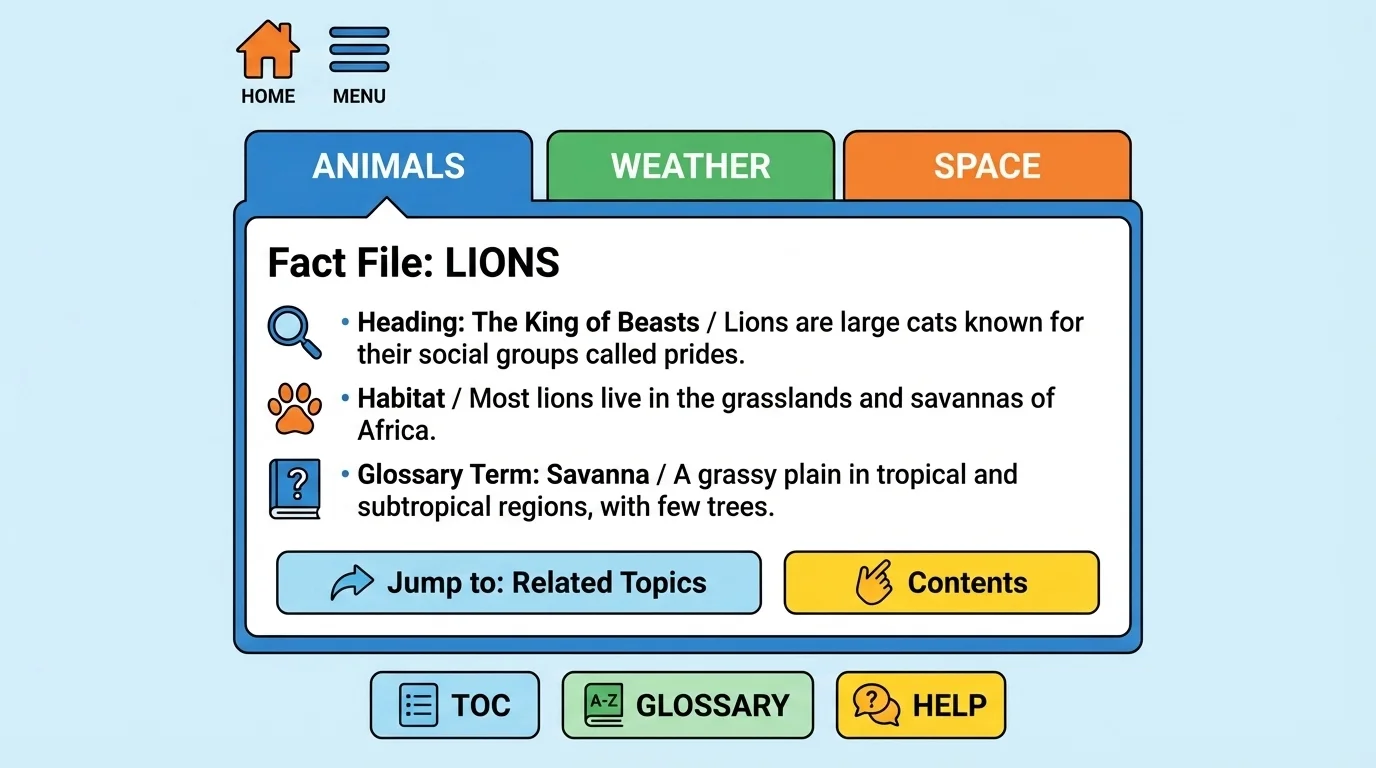
Icons are helpful because they give quick clues. Even when there are only a few words on the screen, the icon can tell the reader what to do. Readers learn to notice these signs and use them to move to the right information.
Many websites and apps use the same icons again and again. When readers learn what those icons mean, they can find information more quickly in many different places.
Digital reading still uses the same big idea: choose the feature that helps you find the fact. If you want the main page, tap the home icon. If you want a list of choices, open the menu. If you already know the topic, choose the matching tab. The screen in [Figure 3] shows how these tools organize information into easy paths.
Strong readers often use more than one text feature. First, they think about what they need. Then they pick the tool that helps most. For example, a child wants to know how penguins keep warm. The child may use the table of contents to turn to the penguin pages, then use a heading like Body Covering or Staying Warm to find the exact section.
Another child may read a page about insects and see the word larva. The child understands the topic but not the word. That is the moment to use the glossary.
Readers do not use every feature for every job. They choose carefully. That is what good readers do when they look for key facts.
After using a text feature, readers should stop and check: "Did I find the fact I needed?" If the answer is no, they can try another feature. Maybe the heading was too broad, so the glossary is better. Maybe the menu led to the topic, but now a heading on the page is needed.
Finding information is a little like following signs in a big building. The signs help you get where you want to go. Text features are the signs in books and on screens.
When you read, your eyes do more than move across words. Good readers also scan pages, notice clues, and make smart choices about where to look next.
Every time you read nonfiction, you can ask yourself: "What am I trying to find?" Then look for the text feature that fits your job best. Titles and headings help with sections. A table of contents helps with pages. A glossary helps with word meanings. Menus and icons help on screens.