Missing one tiny detail can cause a surprisingly big problem. A skipped checkbox might delay a sign-up. A wrong appointment time might make you miss a doctor's appointment or online meeting. A forgotten auto-renew setting might charge your family for something nobody wanted to keep. Learning to read everyday information carefully is a real independence skill. It helps you protect your time, money, privacy, and reputation.
As you get older, more parts of life start coming with forms, confirmations, and service details. You may sign up for sports, clubs, tutoring, streaming platforms, volunteer programs, youth banking apps, medical portals, delivery updates, or community events. These documents and messages are not just background noise. They are instructions. If you can interpret them on your own, you become more reliable and more confident.
Being independent means understanding before acting
Independence is not about doing everything alone with no help. It means you can read information, figure out what it is asking, notice what matters, and decide when you can handle it yourself and when you should ask a trusted adult for support.
When this skill is done well, you arrive on time, bring what you need, avoid unnecessary charges, and respond correctly. When it is done poorly, you might miss deadlines, share private information with the wrong person, or agree to rules you did not notice.
[Figure 1] Not every form or service message looks the same, but most fall into a few categories. Once you know the patterns, they get easier to understand.
You may see an online registration form, a medical history form, a shipping update, a text message confirming a haircut appointment, a page describing a subscription, a notice about a late fee, or a message asking you to verify your account. Some are short and simple. Some are full of details. Your job is to figure out the purpose, the action needed, and the important limits.
| Type | What it usually includes | What you should check first |
|---|---|---|
| Registration form | Name, contact info, date of birth, emergency contact, permissions | Required fields, accuracy, deadlines |
| Appointment confirmation | Date, time, location, video link, preparation instructions | When, where, how, and what to bring |
| Service plan page | Price, trial length, features, limits, cancellation rules | Total cost, auto-renew, usage limits |
| Delivery or service notice | Status update, expected arrival, tracking, next steps | What changed and whether action is needed |
| Account verification message | Code, security request, account alert | Whether it is legitimate and safe |
Table 1. Common everyday document types and the first details to check.
A required field is a part of a form that must be completed before you can submit it. Forms feel less confusing when you know how their parts work. Instead of reading every line in order right away, start by scanning the whole form so you understand what kind of information it wants.
Step 1: Find the purpose. Ask yourself, "What is this form for?" Is it registering you for something, giving permission, collecting contact information, or creating an account?
Step 2: Look for instructions. Search for words like required, optional, submit by, complete in blue or black ink, upload document, or parent/guardian signature needed.
Step 3: Fill in one section at a time. Do not bounce around randomly. Complete personal details, then contacts, then health or preferences, then signatures.
Step 4: Check accuracy. Misspelling your email address or phone number can stop people from reaching you. A wrong date of birth can create account problems later.
Step 5: Notice which questions are optional. Optional means you can choose whether to answer. Required means you must answer to finish the form.
Step 6: Review before submitting. Read every filled section one more time. Make sure names are spelled correctly, numbers are accurate, and boxes reflect what you really mean.
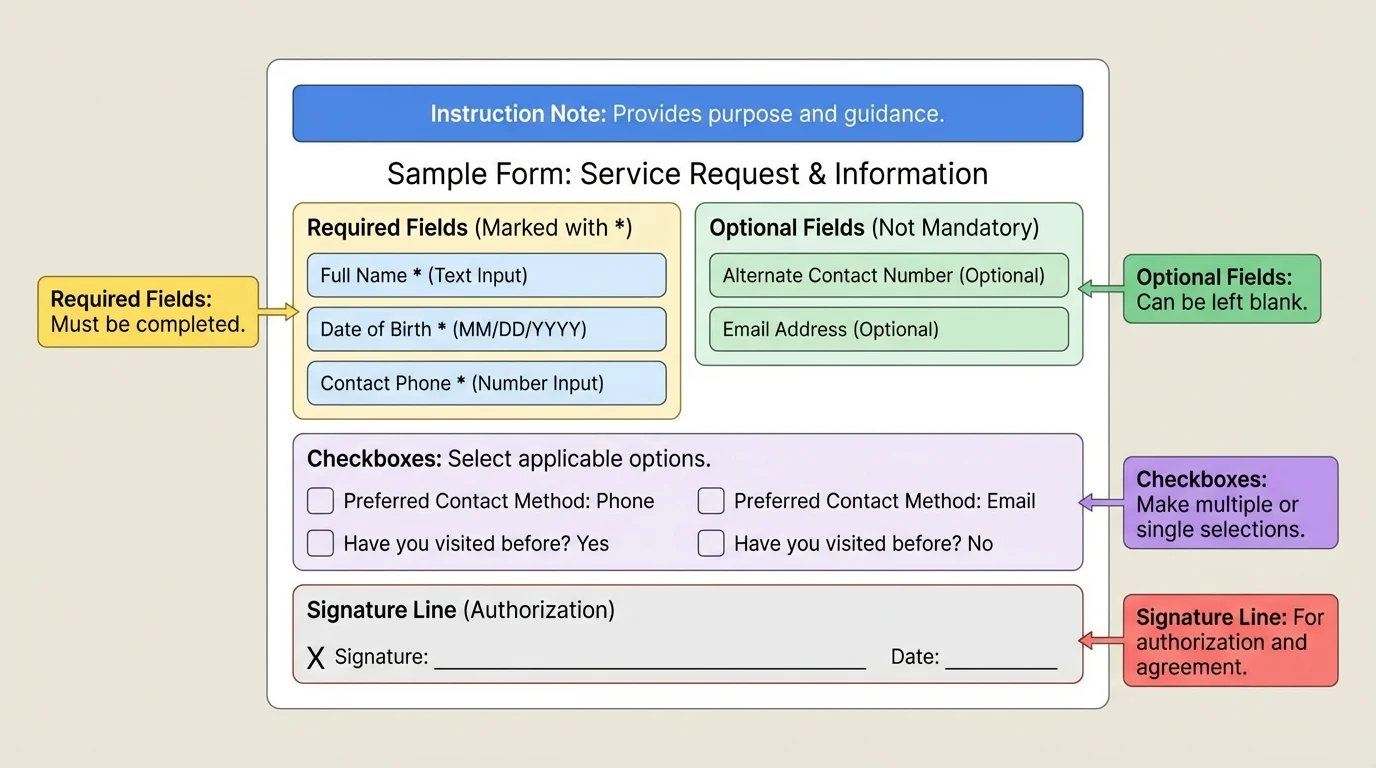
Be especially careful with checkboxes and dropdown menus. People often rush through them. A checked box might mean "I agree to receive marketing emails" or "Save payment method for future use." If you do not understand a checkbox, pause before clicking.
Example: reading a volunteer signup form
Step 1: You scan the form and see it is for a Saturday community clean-up event.
Step 2: You identify required items: full name, email, emergency contact, and age.
Step 3: You notice one optional question asking whether you want event updates by email.
Step 4: You see a permission box about photos being used in event posts, so you read it carefully before deciding.
Step 5: You review your information and submit a screenshot of the confirmation page.
This process helps you avoid mistakes and keeps proof that you registered.
Later, when you handle more detailed paperwork, the same habit still works. The form structure shown in [Figure 1] is still useful because most digital forms use the same building blocks: instructions, required fields, choices, and a final confirmation.
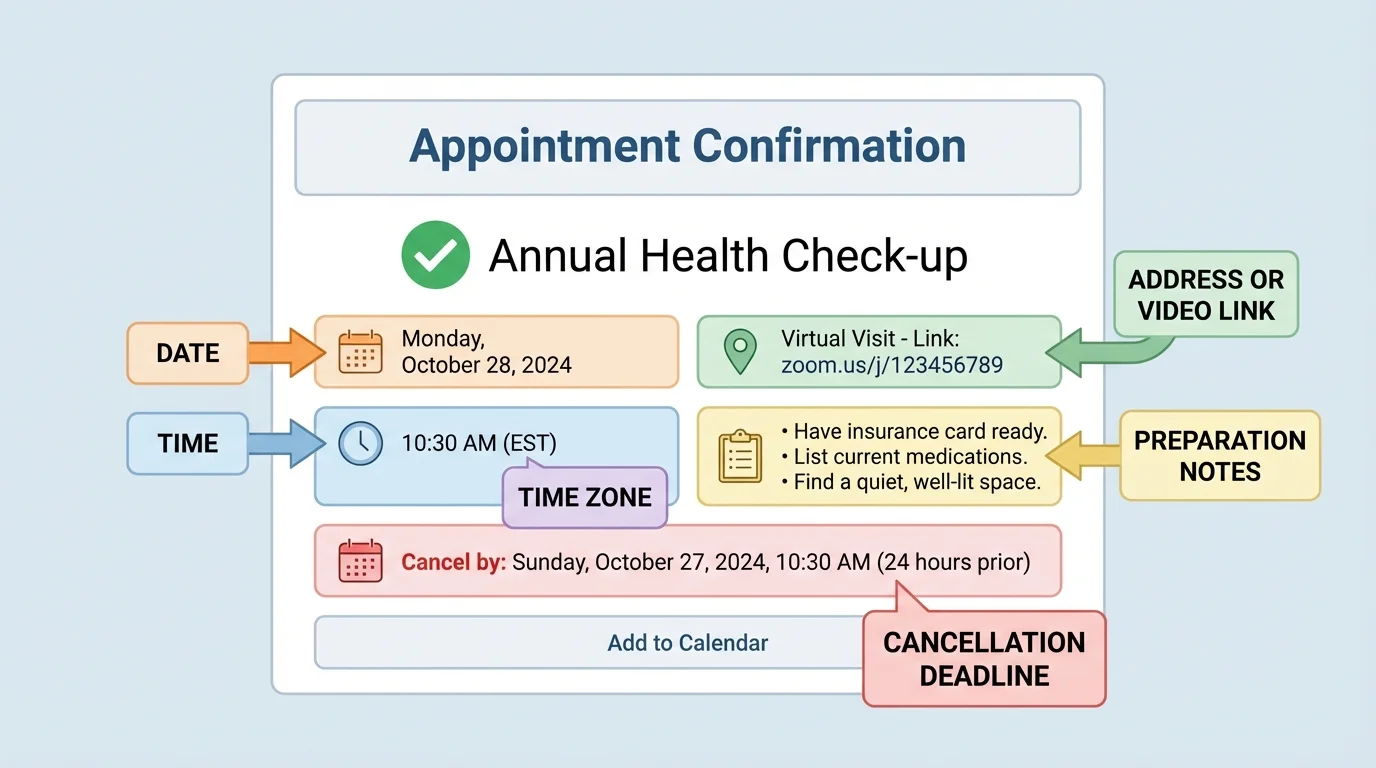
An appointment confirmation is a message that tells you the exact details of a scheduled service or meeting. These messages often look simple, but they pack a lot of information into a small space, as [Figure 2] illustrates. If you only glance at the top line, you can miss something important.
Always check date, time, location, and format. Format means whether the appointment is in person, by phone, or by video. If it is virtual, look for the meeting link, app name, login instructions, and whether you need to join early.
Also check for a time zone. This matters a lot with online services. A message that says the appointment is at 3:00 may not mean 3:00 in your local area. If the provider is in a different region, 3:00 there may be a different time where you live. You do not need advanced math to handle this. You just need to notice the time zone label and compare it with your own device calendar.
Read preparation instructions carefully. You might need to arrive 15 minutes early, bring an ID, complete a form first, fast before a medical test, or upload a photo. If the message says to log in 10 minutes before the call, treat that as part of the appointment time, not as an optional suggestion.
Cancellation and rescheduling rules matter too. Some services allow free changes up to 24 hours before the appointment. Others charge a fee for late cancellation. If you know you cannot make it, respond as soon as possible.
One of the easiest mistakes is mixing up similar dates. For example, 3/7 could mean March 7 or July 3 depending on the format being used. Look for the month written out if possible. Also be careful with 12:00 a.m. and 12:00 p.m. Those two are easy to confuse, and the result is being off by 12 hours.
When the details are important, copy them into a calendar right away. Include the address, link, confirmation number, and any reminder notes. The breakdown shown in [Figure 2] is useful because almost every appointment message includes the same core pieces, even when the design looks different.
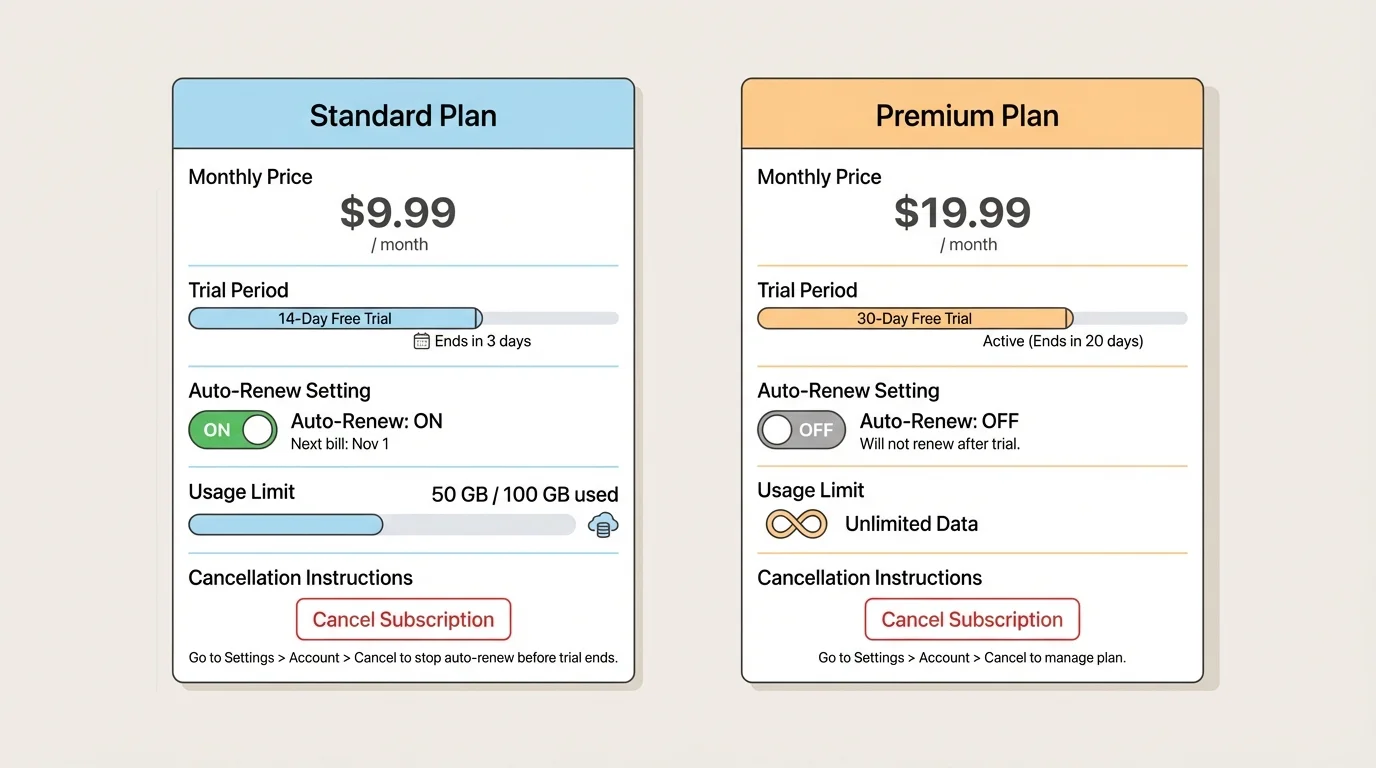
A auto-renewal means a service continues and charges again unless you cancel it before the renewal date. Service pages often try to attract you with one big message like "Free for 7 days" or "Only $4.99 a month," but the smaller details matter just as much, as [Figure 3] shows.
Start by asking four questions: What does it cost? How long does it last? What are the limits? How do you stop it? Those questions help you move beyond the sales language.
Check whether the price changes after a trial. A plan might say "First month free," but the second month could become $12.99 automatically. Check whether payment starts immediately, at the end of the trial, or after a certain number of uses.
Look for terms and conditions. This phrase means the rules of the service agreement. You do not always need to read every word, but you should look for the parts about billing, cancellations, age requirements, privacy, and limits on use.
A service can also have limits that are easy to miss: data caps, booking limits, one-device access, late fees, delivery windows, or extra charges for premium features. Sometimes the basic version sounds complete, but key features cost more.
Be careful with words that sound similar but mean different things. Pause is not always the same as cancel. Intro price is not the same as regular price. Starting at does not mean every version costs that amount. If the page says "plans from $10," another version may cost much more.
The comparison layout in [Figure 3] helps you spot the details that matter most in real life: cost, length, limits, and cancellation. Those are the details that decide whether a service is actually useful for you.
Many people do not lose money because prices are hidden completely. They lose money because the important details are placed in smaller text, lower on the page, or inside expandable sections they never open.
Whenever a service involves money, account access, or personal information, slow down. Taking an extra minute now can save much more time and stress later.
A scam is a dishonest trick used to steal money, information, or account access. Not every form or message is legitimate. Some are designed to look urgent so you will react without thinking.
Watch for warning signs: spelling errors, strange email addresses, pressure words like urgent or act now, links that do not match the company name, requests for passwords, demands for payment through gift cards, or forms asking for very private information that does not fit the situation.
If a message says your account will be closed immediately unless you click a link, do not rush. Open the official app or website yourself instead of using the message link. If a form claims to be from a doctor, employer, or community group but asks for information that seems unrelated, stop and verify.
Private information needs extra protection
Things like passwords, full banking details, social security numbers, and one-time security codes should only be shared in secure, verified places and usually only when truly necessary. If you are unsure, ask a trusted adult before submitting anything.
Trust your discomfort. If something feels off, that feeling matters. Independent decision-making includes knowing when not to continue.
A verification check is a quick process for confirming that information is real, accurate, and safe. When you read any form, appointment message, or service page, use the same routine every time. It works like a map, as [Figure 4] shows, and keeps you from missing the details that matter most.
First: What is this? Name the document or message. Is it a signup form, reminder, bill, service offer, or account alert?
Second: What action is needed? Do you need to fill something out, confirm, pay, bring documents, show up, cancel, or do nothing?
Third: What is the deadline? Look for dates, times, renewal dates, cancellation cutoffs, and expiration windows.
Fourth: What are the conditions? Check for cost, required documents, rules, limits, and consent.
Fifth: Is it safe? Verify the sender, link, and purpose. Ask whether the information requested makes sense.
Sixth: Save proof. Take a screenshot, save the email, write the date in your calendar, or store the confirmation number.
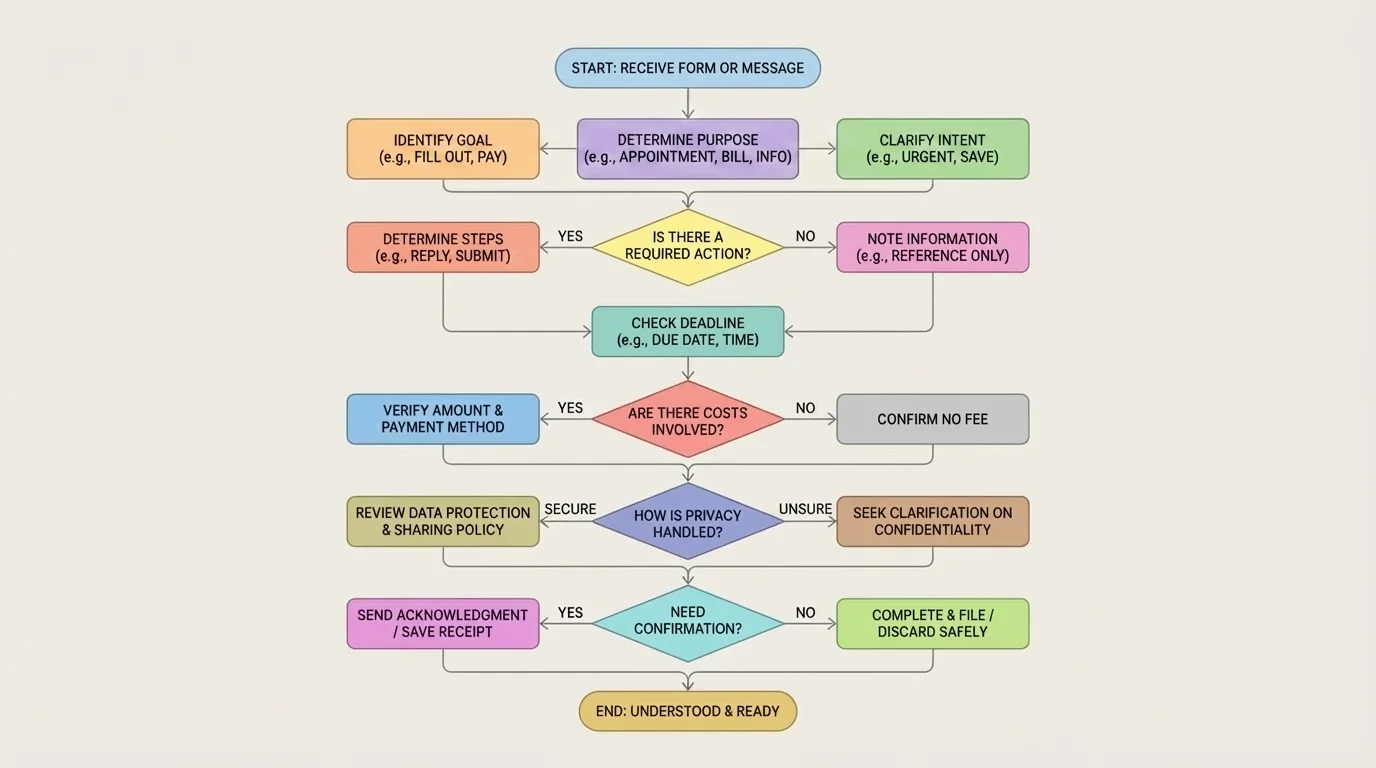
This routine may feel slow the first few times, but it becomes fast with practice. Once it becomes a habit, you will notice details more automatically.
Example: using the decision routine on a message
You receive a message saying, "Your package delivery was missed. Click here to reschedule."
Step 1: Identify the type. It is a delivery notice.
Step 2: Look for needed action. It wants you to click a link.
Step 3: Check the source. The sender address looks unfamiliar and does not match the delivery company.
Step 4: Ask whether it makes sense. You are not expecting a package.
Step 5: Decide safely. Do not click. If needed, open the official delivery app or website directly and check there.
The routine helps you avoid reacting to a fake urgent message.
Later, when you compare subscriptions or confirm real appointments, the same decision pattern still works. The flowchart in [Figure 4] is useful because it applies to almost any everyday document you will face.
Here are some realistic situations where careful reading makes a big difference.
Medical appointment: A portal message says your appointment is at 3:30 p.m., asks you to arrive 15 minutes early, and says to bring your insurance card and a list of medications. If you only remember 3:30, you may still be late because the check-in time is really 3:15.
Haircut booking: The booking site sends a confirmation with a stylist name, location, and cancellation rule. If it says free cancellation up to 12 hours before the appointment, canceling 1 hour before could still trigger a fee.
Phone plan: A low-cost plan looks great until you notice it includes only a small amount of data each month and charges extra after that limit. If you stream videos often, the cheapest plan may not actually be the best plan.
Online signup: You create an account for a competition and see a checked box allowing promotional emails and another box agreeing to public display of your username. If you rush, you may share more than you wanted.
Community event form: The form asks for your emergency contact and whether you have allergies. Those questions are there for safety. If you skip them carelessly, staff may not have information they need if something goes wrong.
Good interpretation is not just reading. It also involves staying organized. Keep confirmations in one folder in your email, take screenshots of important pages, and put appointments into your calendar right away. Use reminder alerts. If a form or message includes a code or reference number, save it.
When you need help, ask clear questions. Instead of saying, "I don't get this," try, "The message says the trial ends on Friday. Does that mean I have to cancel before Friday starts, or before the end of Friday?" Clear questions get clearer answers.
You do not have to know everything instantly. What matters is building a calm process: read, identify, verify, decide, save. That process makes you more capable every time you use it.
"Read the details once now, or deal with the consequences twice later."
Being able to handle everyday forms and service information on your own is a real-life advantage. It helps you show up prepared, avoid confusion, and make smarter decisions in situations that adults deal with every day.